


SameMovie Netflix Video Downloader
- Download any TV shows and movies from Netflix easily;
- Download Netflix videos to MP4/MKV Format in batch;
- Save multilingual audio tracks (including Atmos) and subtitles;
- Super high download speed & download success rate.
7 Best Netflix Ad Blockers and Alternatives in 2026

Claire Green Sepetember 25, 2026 Category: Netflix Tips
Always interrupted by Netflix ads? You're not alone. Since Netflix launched Standard with Ads plan, more and more people have started searching for Netflix ad blockers. The problem is that Netflix uses server-side ad insertion technology, which embeds ads directly into the video stream, and ordinary Netflix ad blockers are often ineffective.
So, we tested and compared the 8 best Netflix ad blockers and alternatives in 2026. Below, you'll find a clear comparison table, detailed test reviews, and real methods to block Netflix ads.
You might also want to know 👉: 6 Legal Ways to Get Netflix for Free in 2026

Reading Guide
Part 1: Best Netflix Ad Blockers: Quick Comparison
Different Netflix ad blockers work in different ways. Some filter ads, some skip ads, and others get rid of ads by downloading videos. The table below compares several Netflix ad blockers based on how they work, supported devices, ad-blocking performance, and pricing.
| Tool | Rating | Supported Devices | How It Works | Ad-Free Viewing | Price |
|---|---|---|---|---|---|
| SameMovie | ⭐⭐⭐⭐⭐ | Windows/Mac | Download & watch offline | Yes – Offline | Free Trial/Paid |
| Streaming Enhanced | ⭐⭐⭐⭐ | Chrome/Firefox/Edge | Automatically skips ads | Skip Only | Free |
| Netflix Ad Blocker | ⭐⭐⭐ | Chrome/Edge | Browser-based filtering | Partial | Free |
| Netflix Skipper | ⭐⭐⭐ | Chrome/Edge | Automatically clicks "Skip Ads" | Skip Only | Free |
| AdGuard | ⭐⭐⭐ | Android/iOS | System/DNS filtering | Partial | Free/Paid |
| uBlock Origin + Firefox | ⭐⭐⭐ | Android | Browser-based filtering | Partial | Free |
| Brave Browser | ⭐⭐⭐⭐ | Android/iOS | Built-in ad blocking | Partial | Free |
Part 2: 4 Best Netflix Ad Blockers for Desktop (PC & Mac)
2.1 SameMovie Netflix Video Downloader
Rating: ⭐⭐⭐⭐⭐
Devices: Windows 10-11, macOS 11-26
If you want to completely get rid of Netflix ads, SameMovie Netflix Video Downloader is one of the most effective methods currently available.
Unlike other Netflix ad blockers, which often struggle to counter Netflix's server-side ad insertion technology, SameMovie removes Netflix ads by downloading Netflix movies directly to your laptop. After downloading, you can freely watch Netflix content offline without ads or interruptions, even if you're on the Standard with Ads plan.
Features of SameMovie Netflix Video Downloader:
- Download Netflix movis on both Windows and Mac laptops.
- Download all movies on Netflix with no limits or expiration dates.
- 10X faster download speed for quick and efficient saving.
- Offers 1080p resolution, MP4/MKV formats, and multiple subtitle/audio track options.
- Supports batch downloads for full seasons or playlists.
- Clean interface and completely ad-free experience.
How to Download Netflix without Ads with SameMovie
STEP 1 Install SameMovie Netflix Video Downloader
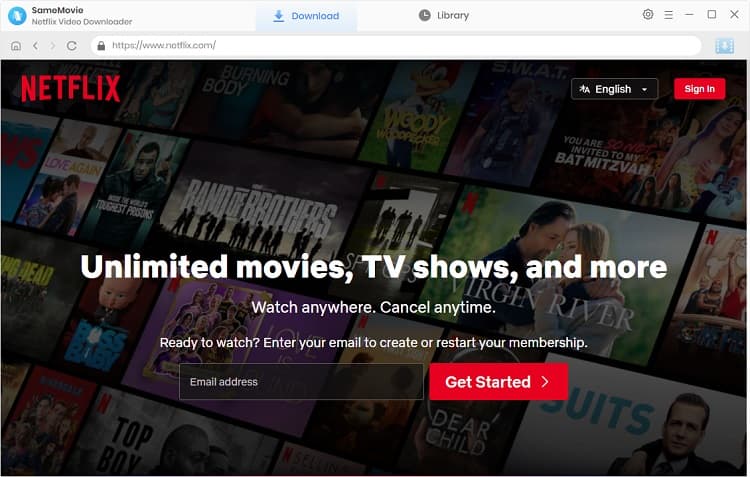
Download and install SameMovie Netflix Video Downloader on your computer, launch the program, and log in with your Netflix account (at least the Standard with Ads plan).
STEP 2 Search for Netflix Movies
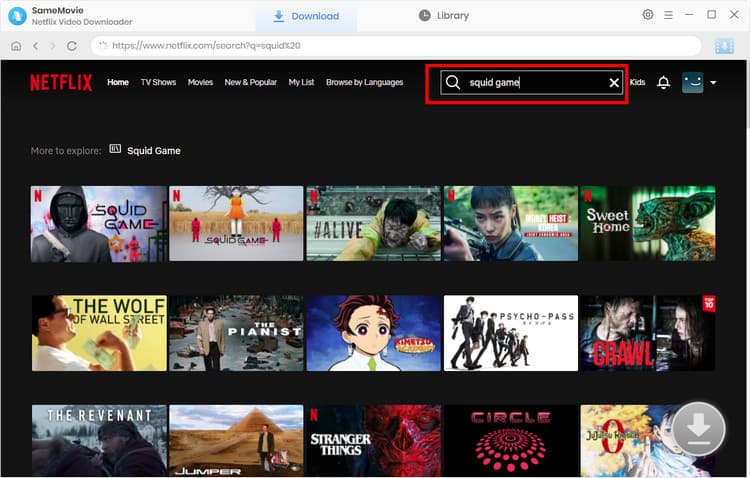
Browse and search for the Netflix movie or show you want to download in the built-in browser, or simply type the name in the search bar. Once the video is successfully loaded, click the Download button in the bottom-right corner.
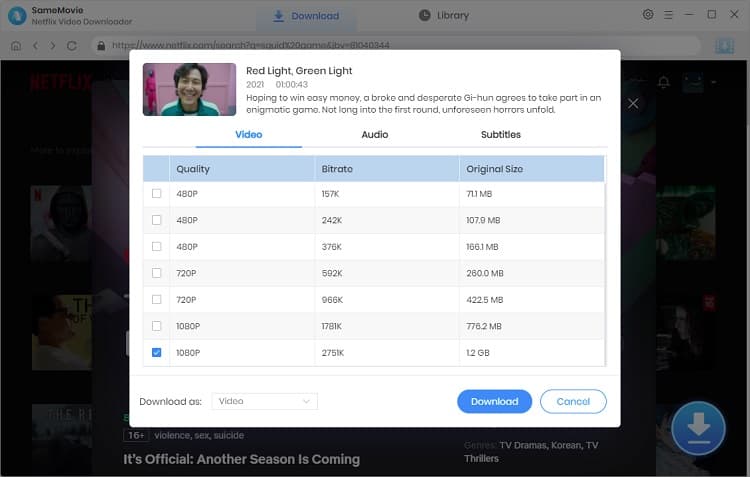
STEP 3 Adjust Netflix Download Settings
Next, you can select your preferred episodes, video quality, audio tracks, and subtitle mode, then click the Download button again.
STEP 4 Locate Downloaded Netflix Movies
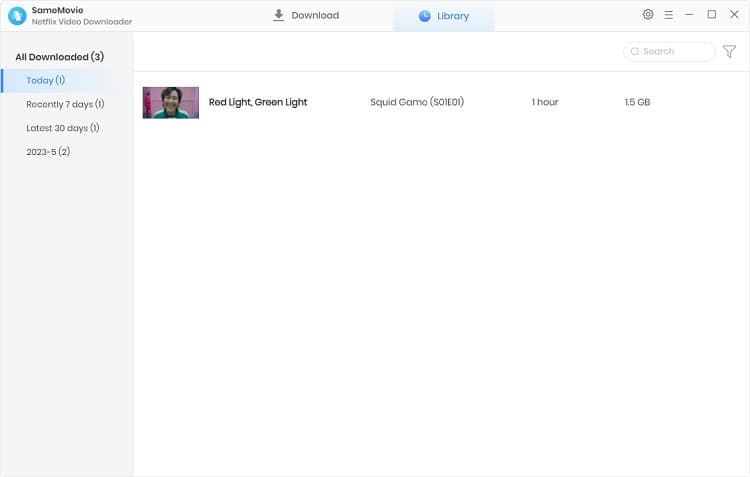
Once the download is complete, head to the Library tab to find all your downloaded Netflix movies listed there.
2.2 Streaming Enhanced
Rating: ⭐⭐⭐⭐
Devices: Windows 10-11, macOS 11-26
If you prefer to watch Netflix directly via a browser rather than download, Streaming Enhanced is currently the recommended Netflix ad blocker. How to Use Streaming Enhanced to Block Netflix Ads
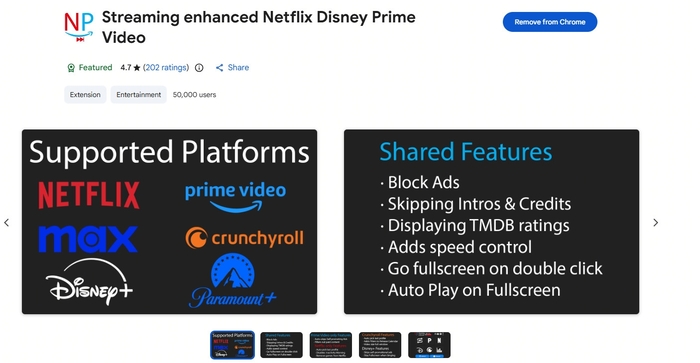
Streaming Enhanced is a browser extension that supports Chrome, Firefox, Edge, and so on. Unlike traditional ad blockers, it primarily skips ads by automatically detecting and fast-forwarding through Netflix ads. It can also automatically skip opening credits, recaps, and closing credits.
How to download Netflix videos and other all streaming videos:
Search for and install Streaming Enhanced in your browser.
Visit Netflix.com and log in to your account.
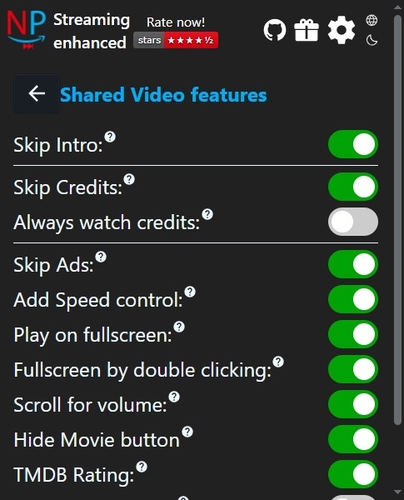
Click the Expand icon and make sure "Skip ads" is enabled.
Pros & Cons of Streaming Enhanced
😊 Pros
- Free to use.
- Easy to use and works automatically after installation.
- Comprehensive features, including ad blocking and skipping intros, recaps, and credits.
😣 Cons
- Doesn't completely remove ads, but instead skips or fast-forwards through them.
- Relies on Netflix's page structure and may temporarily stop working after Netflix updates.
- Only works when watching Netflix in a browser and doesn't support the official Netflix app.
2.3 Netflix Ad Blocker
Rating: ⭐⭐⭐
Devices: Browser (Chrome, Edge, Brave)
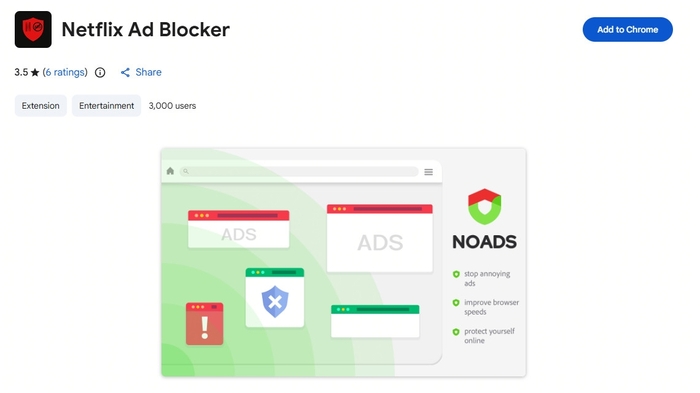
Netflix Ad Blocker is a dedicated browser extension designed for Netflix, mainly supporting Chrome and other Chromium-based browsers. It can help block ads, skip trailers, and stop autoplay previews on Netflix. However, it cannot 100% completely remove video ads, especially when Netflix updates its system.
How to Block Netflix Ads with Netflix Ad Blocker
Open the Chrome Web Store, search for "Netflix Ad Blocker", and click Add to Chrome.
After installation, open Netflix and log in to your account.
Start playing a Netflix video, and Netflix Ad Blocker will block ads automatically.
Pros & Cons of Netflix Ad Blocker
😊 Pros
- Specifically designed to block Netflix ads.
- Easy to use without complicated setup required.
- Free to use.
😣 Cons
- Its effectiveness may be affected by Netflix updates and can be unstable at times.
- Doesn't completely remove ads like a Netflix video downloader.
- User reviews are mixed, with some users reporting that it works well while others find it less effective.
2.4 Netflix Skipper
Rating: ⭐⭐⭐
Devices: Browser (Chrome, Edge)
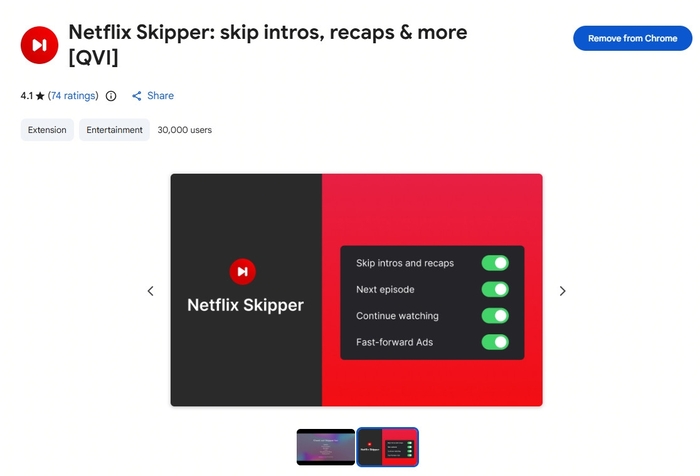
Netflix Skipper is a browser-based ad blocker specifically designed for Netflix, primarily supporting Chrome.
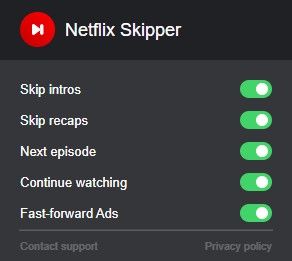
Its main feature is automatically detecting and clicking the "Skip Ads" button on Netflix, helping users skip ads, intros, and recaps and automatically move to the next episode. For people who love to binge-watch Netflix, it can significantly reduce the number of manual steps required.
How to Block Netflix Ads with Netflix Skipper
Search for Netflix Skipper and add it to Chrome.
Open the Netflix website and log in to your account.
Click the Extension icon and enable the skip features you need.
Pros & Cons of Netflix Skipper
😊 Pros
- Comprehensive features beyond ad skipping.
- Easy to use and works automatically after installation.
- Free to use.
😣 Cons
- May be affected by Netflix page updates and occasionally stop working.
- Mainly optimized for the English interface, so it may be less stable in other languages.
- Only works when watching Netflix in a browser.
Part 3: 3 Best Netflix Ad Blockers for Mobile (Android & iOS)
3.1 AdGuard
Rating: ⭐⭐⭐
Devices: Android, iOS
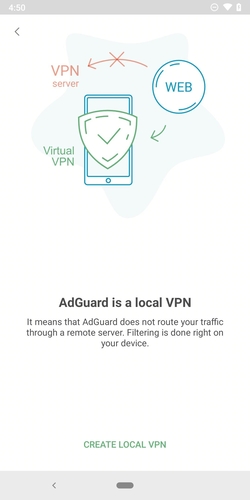
AdGuard is one of the most powerful and full-featured Netflix ad blockers for Android and iOS. Unlike other browser-based ad blockers, which can only work on web pages, AdGuard can filter network traffic at the system level and block ads across browsers and other apps. This makes it a more versatile option for users who want to block ads beyond their browser.
How to Block Netflix Ads on Mobile with AdGuard
Android
Download the AdGuard APK from the official website.
Install and open AdGuard, then enable Local VPN mode.
Turn on Ad Blocking and Tracking Protection.
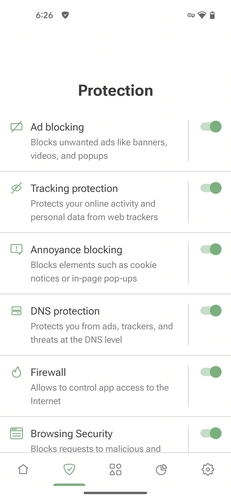
Open the Netflix in browser and start streaming.
iOS
Download AdGuard from the App Store.
Enable AdGuard content blockers for Safari.
Enable DNS Protection to filter traffic from other apps.
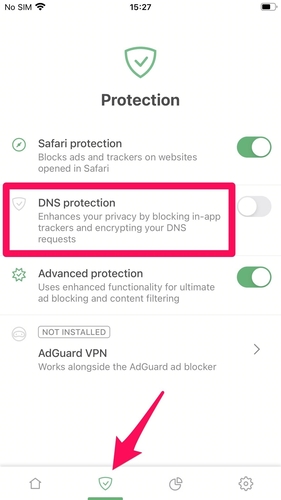
Pros & Cons of AdGuard
😊 Pros
- User-friendly interface with customizable filtering rules.
- Blocks ads while also protecting privacy and preventing tracking.
- Regularly updated by the official team.
😣 Cons
- Cannot completely remove ads embedded in Netflix videos.
- More limited on iOS due to system restrictions, especially for the Netflix app.
- Some advanced features require a paid plan.
- Local VPN mode cannot be used simultaneously with another VPN.
3.2 uBlock Origin + Firefox
Rating: ⭐⭐⭐
Devices: Android
uBlock Origin is a free and open-source Netflix ad blocker. It is highly compatible with Firefox and works well for blocking Netflix ads when the two are used in combination. However, it may become less effective when Netflix updates its advertising formats.
How to Block Netflix Ads on Mobile with uBlock Origin
Install Firefox on your phone.
Open Firefox, search for and install uBlock Origin.
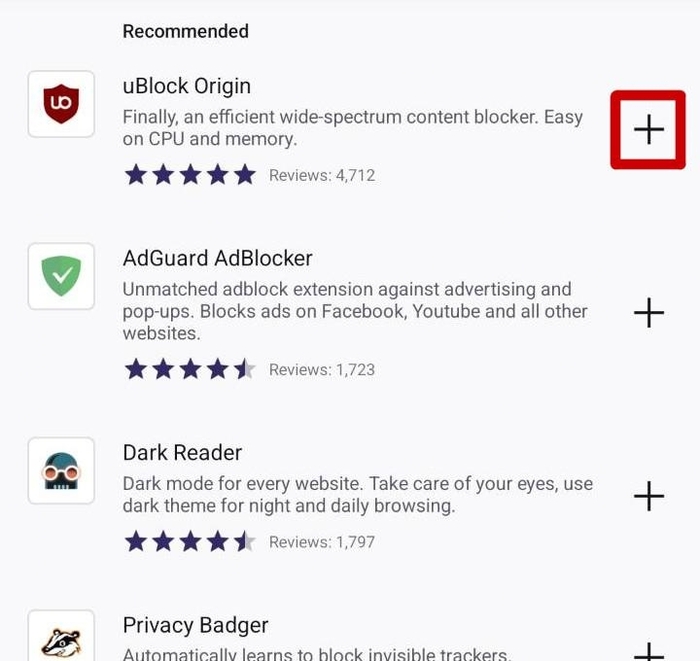
Visit the Netflix website and log in to your account.
Start playing a video, and uBlock Origin will automatically block ads.
Pros & Cons of uBlock Origin + Firefox
😊 Pros
- Free and open-source.
- Powerful ad and tracker blocking.
- Highly customizable filtering rules.
- Works well with Firefox.
😣 Cons
- Best experience requires Firefox.
- Advanced settings may be complicated for beginners.
- May occasionally affect website functionality.
- Netflix ad-blocking effectiveness can vary after updates.
3.3 Brave Browser
Rating: ⭐⭐⭐⭐
Devices: Android, iOS
Although Brave Browser is not specifically designed as a Netflix ad blocker, it performs well in blocking Netflix ads. It is a browser with a built-in ad and tracker blocker, so you don't need to install an additional ad-blocking extension. For Netflix users, simply install Brave and you can watch Netflix without ads directly in the browser.
How to Block Netflix Ads on Mobile with Brave Browser
Download and install Brave Browser on your phone.
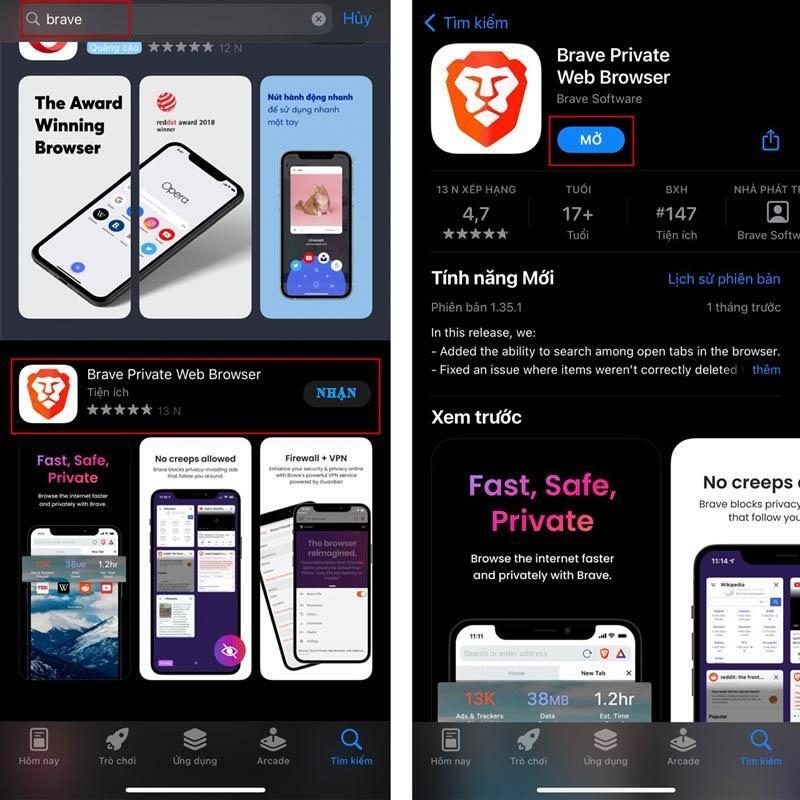
Open Brave, click Shields in the top-right corner, and make sure ad blocking is enabled.
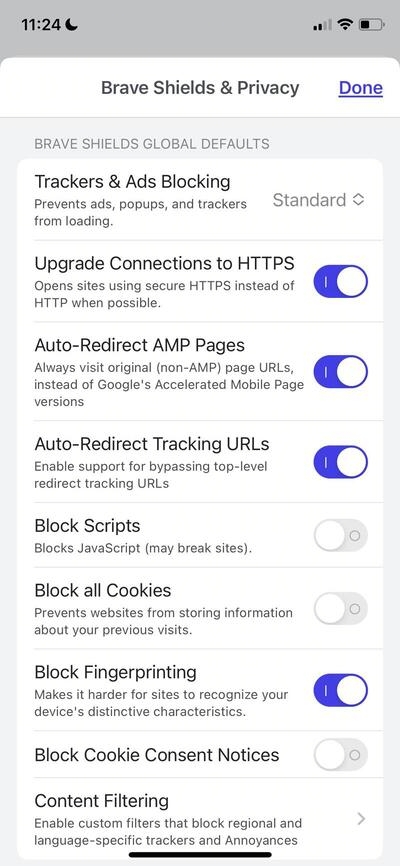
Visit the official Netflix website and log in to your account.
Play a Netflix video, and Brave will automatically block the ads.
Pros & Cons of Brave Browser
😊 Pros
- No need to install a plugin; Brave has a built-in ad-blocking function.
- Easy and free to use.
- Blocks ads and trackers at the same time.
- Supports Android, iOS, and desktop devices.
😣 Cons
- Not specifically designed for Netflix.
- May be affected by Netflix updates.
- Mainly works for watching Netflix through a browser and does not work with the Netflix app.
- Some website features may be affected by Shields.
Part 4: FAQs about Netflix Ad Blockers
Here are some common questions about using Netflix video downloaders:
Ordinary Netflix ad blocker can't take effect on TV. If you want watch Netflix without ads on TV, you can consider use SameMovie Netflix video downloader to download it to your laptop, and then transfer it to your televison.
Download Now Download NowIn most cases, using a Netflix ad blocker does not affect video quality. Some browser extensions may modify the Netflix web page, which may lead to playback errors. If you use SameMovie to download and watch videos offline, the video quality depends on the quality you choose.
Using a Netflix ad blocker to skip or remove ads is generally not illegal. However, if you use SameMovie to download Netflix movies, you should only use the downloaded content for personal offline viewing. Otherwise, you may violate local laws or regulations.
Ordinary browser-based Netflix ad blockers can be unstable. Once Netflix updates its website or advertising system, they may stop working properly. If you want a more reliable way to get rid of Netflix ads, you can use SameMovie to download Netflix videos for offline viewing.
Download Now Download NowThe End
Removing Netflix ads is not limited to one method, and different tools work in different ways. If you don't mind watching Netflix in a browser and prefer a straightforward solution, you can choose a browser extension like Netflix Ad Blocker or Netflix Skipper.
However, if you want a truly ad-free and offline viewing experience, SameMovie provides another option by downloading Netflix videos for offline viewing.
Claire Green, a content writer specializing in blogs. With a passion for streaming video, Claire explores the latest trends, reviews popular platforms, and provides insightful tips for optimizing your streaming experience.