


SameMovie Netflix Video Downloader
- Download any TV shows and movies from Netflix easily;
- Download Netflix videos to MP4/MKV Format in batch;
- Save multilingual audio tracks (including Atmos) and subtitles;
- Super high download speed & download success rate.
5+ Ways to Fix Netflix Download Limit Exceeded in 2026

Claire Green October 21, 2026 Category: Netflix Tips
Many Netflix users may encounter the "Netflix download limit exceeded" message when downloading movies or shows from Netflix. Even if they haven't downloaded many titles or have already deleted some movies, the issue may still occur.
Don't worry! In this article, we'll introduce 5+ ways to fix Netflix download limit issues, helping you understand the reasons behind these errors, learn how to fix them, and explore an alternative way to save Netflix videos for offline viewing.
You might also want to know 👉: 6 Legal Ways to Get Netflix for Free in 2026
Reading Guide
Part 1: Does Netflix Have A Download Limit?
Yes! Netflix sets various download limits for offline viewing. These limits may depend on your subscription plan, the number of devices with downloads, and the titles you want to download. The table below summarizes the download device limits and per-device download limits for different Netflix plans.
| Netflix Plan | Download Devices | Download Limit per Device |
|---|---|---|
| Standard with ads | Up to 2 devices | 15 titles per month |
| Standard | Up to 6 devices | Up to 100 active downloads at a time |
| Premium | Up to 6 devices | Up to 100 active downloads at a time |
If you encounter a Netflix download limit exceeded error, don't rush to delete all your downloads. Different error messages and codes can indicate different restrictions. The following table lists common Netflix download exceeded errors, their possible causes, and how to fix them.
| Netflix Error Message / Code | Possible Cause | What to Do |
|---|---|---|
| 10016-23000 / NQL.23000 | Your plan's download device limit has been reached | Remove downloads from another device |
| 10016-22005 | You've reached a title download limit set by a studio or distributor | Delete some downloads |
| 10016-22002 | The device has reached its limit of 100 downloads | Delete some downloads and try again |
| NQL.22005 | Too many titles from the same licensing agreement are downloaded | Delete some downloads |
| NQL.22003 | A temporary download restriction may have been triggered by downloading too many titles in a short time | Wait and try again later |
| Download Max Reached | The monthly download limit on an ad-supported plan has been reached | Wait until the limit resets |
| 10016-22007 / NQL.22007 | The title's yearly download limit has been reached | Stream online or download another title |
If you find these Netflix download limits frustrating, try SameMovie Netflix Video Downloader for more flexible offline viewing.
Part 2: 5 Ways to Fix Netflix Download Limit Exceeded
1. Remove Downloads From Other Devices
Netflix allows Standard and Premium users to download titles on multiple devices, with limits on the number of devices and downloads. If you exceed these limits, you may encounter a Netflix download limit error.
If you use Netflix on multiple devices, it can be difficult to keep track of which devices have downloads. In this section, we'll show you how to manage your download devices on a PC or phone and remove downloads from devices you no longer use.
Remove Downloads on a Phone or Tablet (Android, iPhone, or iPad)
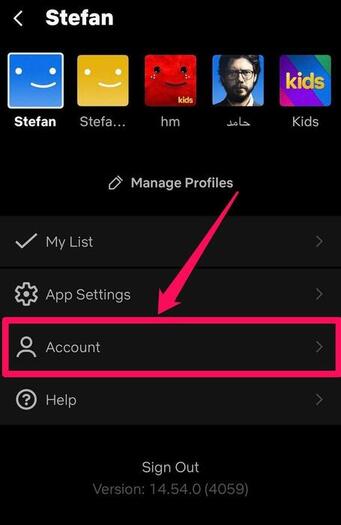
- Open the Netflix app and tap My Netflix in the bottom-right corner.
- Tap your profile name at the top, then select Account.
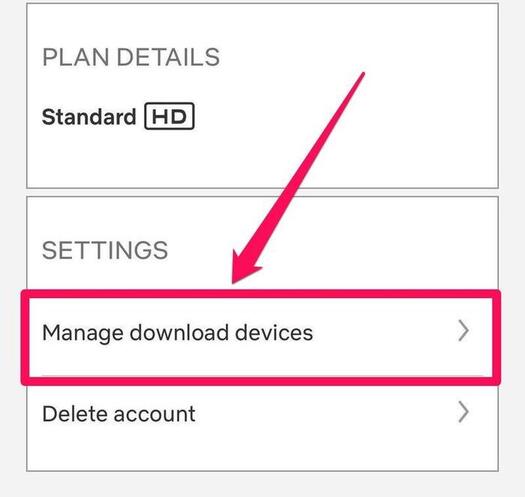
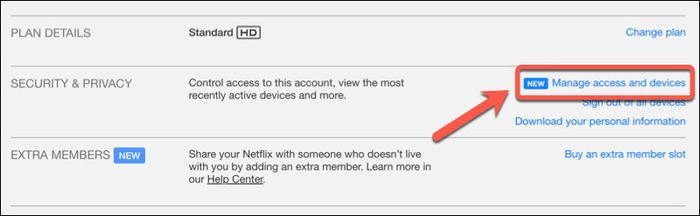
- Under Devices, tap Manage Download Devices.
- Find the device you no longer use and tap Remove device.
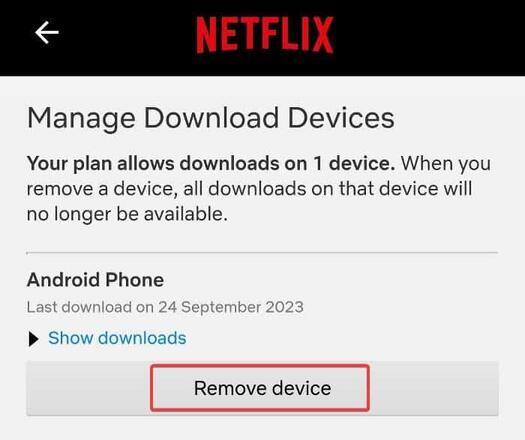
Note: This will delete all downloads on that device and free up a download slot.
Remove Downloads on a Computer (Web Browser)
- Go to netflix.com and sign in.
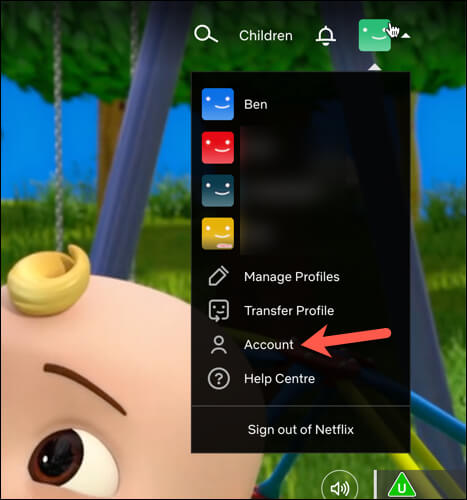
- Click your profile icon in the top right, then select Account.
- Scroll down to the Devices section.
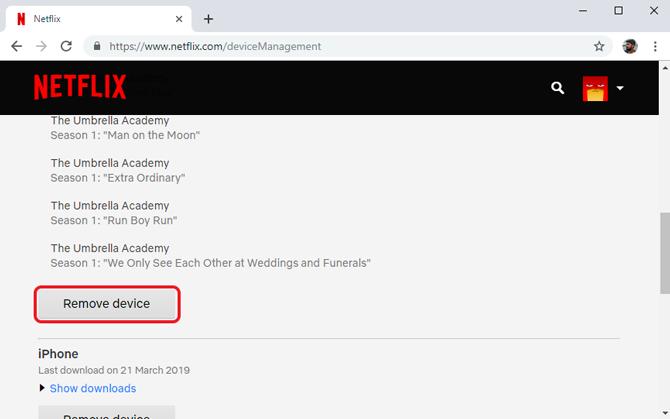
- Click Manage download devices.
- Find the old device and click Remove.
2. Delete Unwatched or Unneeded Downloads
When you encounter the Netflix download limit exceeded error, you can delete movies or shows you've already watched. You can delete individual movies or episodes, or remove all downloads at once.
Delete Individual Movies or Episodes
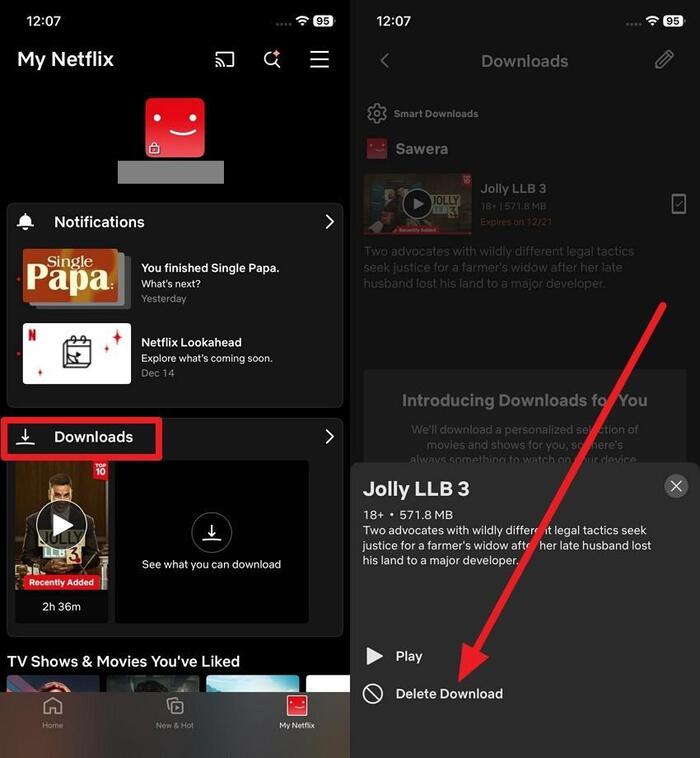
- Open the Netflix app and go to Downloads in the upper-right corner.
- Check the movie or TV show you want to delete.
- Tap the download status icon next to the title or episode.
- Tap Delete Download.
3. Wait for a Temporary Download Limit to Reset
Sometimes, the Netflix download limit exceeded error may be caused by a temporary restriction rather than simply having too many downloads.
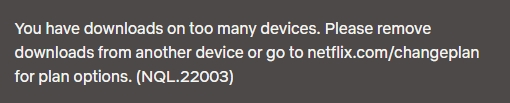
For example, error code NQL.22003 may appear if you download too many Netflix movies or shows within a short period. If you encounter this error, don't rush to delete your downloads. Instead, pause your downloads and wait a while before trying again. If the error persists, continue waiting or try deleting some downloaded titles.
4. Check Whether You Have Reached Your Monthly Download Limit
If you see the Download Max Reached message, you should first check your Netflix plan. This message usually means you've reached your plan's monthly download limit.
Check Your Current Netflix Plan
- Open Netflix in a web browser and sign in.
- Go to your Account page.
- Under Membership, check your current plan.
If you're using the Standard with ads plan, you can download up to 15 titles per device per calendar month. Once you reach this limit, you'll need to wait until the next calendar month for your download allowance to reset. Deleting previously downloaded movies or shows won't restore your monthly allowance.
If you want to avoid the monthly download limit, consider upgrading to an ad-free plan or using an alternative tool to download Netflix videos for offline viewing.
5. Check the Download Limit for a Specific Movie or Show
When you see the error code 10016-22007 or NQL.22007, that means the title you want to download has reached its limits for downloading. Due to restrictions in the copyright license agreement, there is a limit on the number of times you can download certain Netflix movies and TV shows each year. Even if you delete previously downloaded content, you may not be able to download the same title again.
Unfortunately, Netflix does not offer a feature that allows you to check in advance the specific number of times each title can be downloaded. Typically, you will only see an error message when you reach the limit. If you encounter this situation, you can choose to watch the content online or use a third-party tool to download it.
Part 3: How to Save Netflix Videos Without Download Limits
If you often download Netflix movies or TV shows, the platform's official download limits may be inconvenient. You may be unable to download the videos you want due to monthly download quotas, limits on the number of devices allowed for downloads, or title-specific download restrictions.
If you want more flexibility when saving Netflix videos, consider using a third-party tool like SameMovie Netflix Video Downloader. It allows you to download Netflix movies and TV shows on your laptop in resolutions of up to 1080p. Unlike downloads saved through the Netflix app, videos downloaded with SameMovie are saved as MP4 or MKV files, making it easier to transfer them to other devices for offline viewing.

Features of SameMovie Netflix Video Downloader:
- Download Netflix movis on both Windows and Mac laptops.
- Download all movies on Netflix with no limits or expiration dates.
- 10X faster download speed for quick and efficient saving.
- Offers 1080p resolution, MP4/MKV formats, and multiple subtitle/audio track options.
- Supports batch downloads for full seasons or playlists.
- Clean interface and completely ad-free experience.
How to Download Netflix Movies with SameMovie
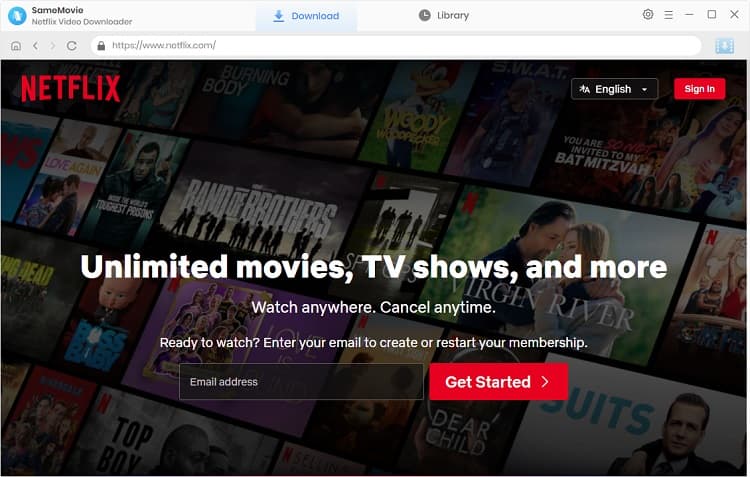
STEP 1 Install SameMovie Netflix Video Downloader
First of all, you need to install SameMovie Netflix Video Downloader on your computer, launch the program, and then log in with your Netflix account.
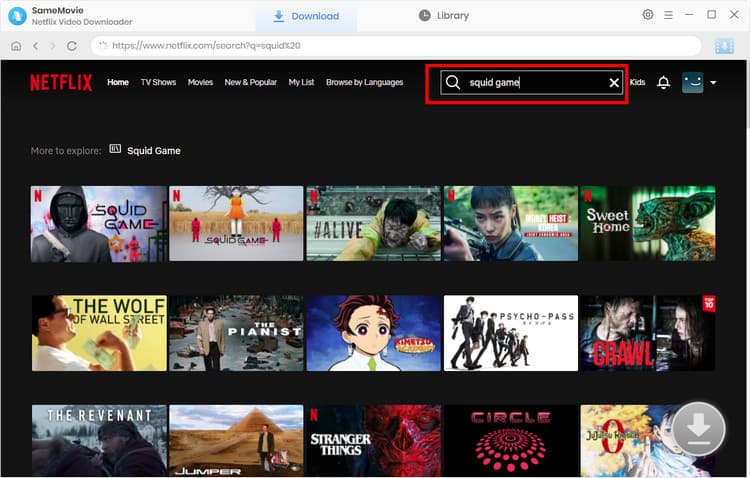
STEP 2 Search for Netflix Movies
With SameMovie’s built-in browser, you can easily search for the Netflix movie you want to download. Alternatively, you can simply copy and paste the video link in the search bar. Once the video has loaded, click the Download button in the bottom-right corner.
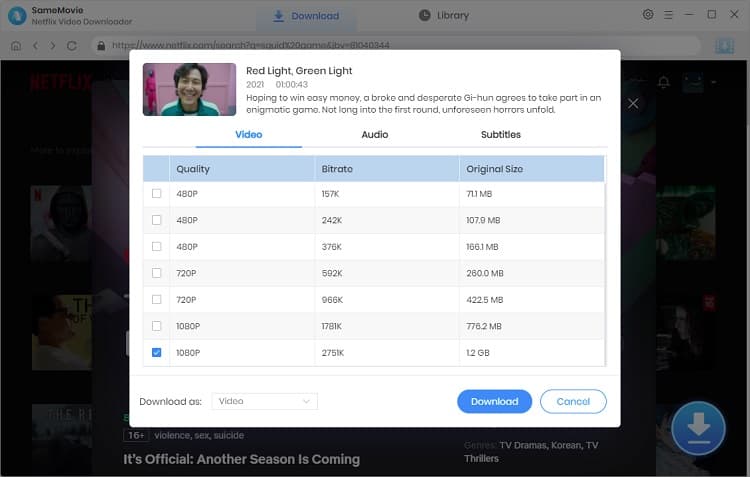
STEP 3 Choose Your Download Preferences
Next, choose your preferred episodes, video quality, audio tracks, and subtitle options. Then, click Download again to start downloading.
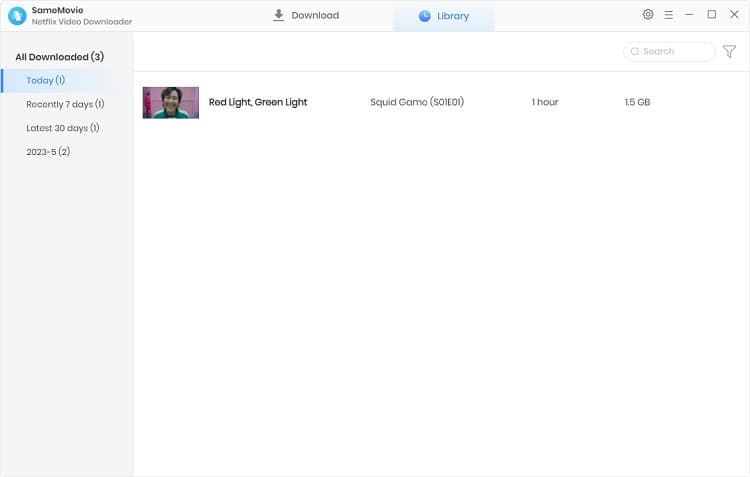
STEP 4 Find Your Downloaded Netflix Videos
After the download finishes, open the Library tab to view your downloaded Netflix movies and shows.
Part 4: FAQs about Netflix Download Limit Exceeded
Here are some common questions about using Netflix video downloaders:
Yes, you can increase your download allowance by switching to an ad-free plan. Netflix's ad-supported plans allow up to 15 downloads per device per calendar month, while ad-free plans support up to 100 active downloads per device at a time.
However, please note that upgrading your plan won't remove all download restrictions. Some titles still have yearly download limits due to licensing agreements.
First, please check your subscription limits and make sure you haven't reached these limits. If Netflix still shows the "too many downloads" error, it might be because you've downloaded too many titles in a short time or the specific title has reached its download limit.
It depends on how you use these downloaded videos. All videos on Netflix are copyright-protected. If you only use the downloaded videos for personal offline viewing, then it is considered acceptable. However, if you use these downloads for commercial purposes, it may violate your local laws.
The End
The Netflix download limit exceeded error may be due to your subscription plan's download allowance, device limits, temporary restrictions, or copyright restrictions on specific titles.
If you want to avoid these restrictions and save Netflix movies for offline viewing, SameMovie Netflix Video Downloader can help you download Netflix movies as MP4/MKV files.
Claire Green, a content writer specializing in blogs. With a passion for streaming video, Claire explores the latest trends, reviews popular platforms, and provides insightful tips for optimizing your streaming experience.