


Netflix Not Working on Fire TV in 2026? How to Fix It

Claire Green January 26, 2026 Category: Netflix Tips
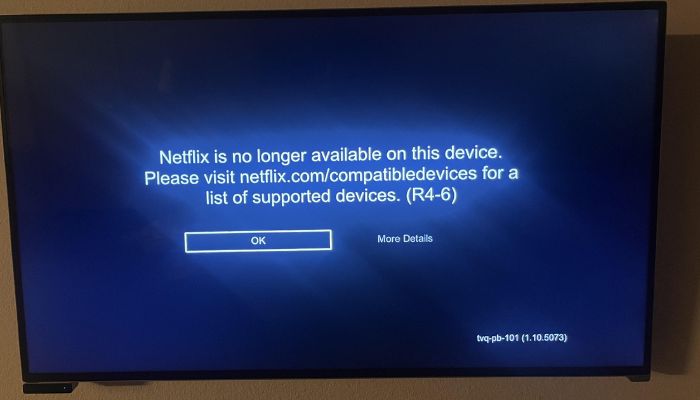
Netflix has ended support for the first-generation Fire TV. You've might tried to open Netflix on your old Fire TV, only to see the error message "Netflix is no longer available on this device".
So, what can you do if you still want to watch Netflix on an older Fire Stick? In this guide, we will show you how to upgrade to a new Fire TV Stick and how to download Netflix movies in full HD to avoid device compatibility issues permanently. Let's get started.
You may also want to know 👉: 8 Best Popular MP4 Movies Download Sites [Latest in 2026]
- Part 1: Does Netflix End Fire TV Support in 2026? (Latest Update)
- Part 2: Why Did Netflix End Support for Some Fire TV Devices?
- Part 3: How to Fix "Netflix is No Longer Available on This Device" on Fire TV (2026 Solutions)
- Solution 1: Upgrade to a New Fire TV Stick (Official Fix)
- Solution 2: Download Full HD Netflix movies and Watch Offline (Recommended)✨
- Part 4: FAQs about Netflix Fire TV Support Ending
Part 1: Does Netflix End Fire TV Support in 2026? (Latest Update)
Yes. On June 3, 2025, Netflix officially ended support for the following first-generation Fire TV devices:
- Fire TV (2014, first generation)
- Fire TV Stick (2014, first generation)
- Fire TV Stick with Alexa Voice Remote (2016, first generation)
At the time of writing, there's no sign that Netflix will restore support for these devices. If you're using one of them, you'll need to upgrade to a newer streaming device or look for alternative ways.
Part 2: Why Did Netflix End Support for Some Fire TV Devices?
If you've ever seen "Netflix is No Longer Available on This Device" or error codes R4, R12, and R25-1, you are not alone. Many users face the same issue.
The main reason is that the hardware of these Fire TVs is too outdated. With the continuous update of Netflix's technology, this hardware can't support the high-quality playback features of the latest Netflix app, such as the latest video codecs (like AV1), HDR/Dolby Vision, and advanced content protection features.
Don't worry. There are still ways to keep watching Netflix on your Fire TV.
Part 3: How to Fix "Netflix is No Longer Available on This Device" on Fire TV (2026 Solutions)
Fixing "Netflix Is No Longer Available on This Device" on Fire TV is not as difficult as you might think. In this section, we will introduce two safe and easy methods that let you watch Netflix on Fire TV, even the oldest ones.
Solution 1: Upgrade to a New Fire TV Stick (Official Fix)
Since Netflix no longer supports older Fire TV devices, the easiest way to solve this problem is to directly upgrade your Fire TV Stick to the latest, including Fire TV Stick 4K Max, Fire TV Stick 4K, and
Fire TV Stick HD.
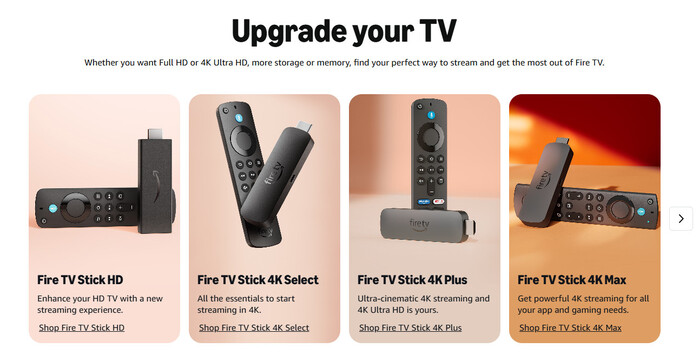
These Fire TV Sticks are fully compatible with the latest Netflix app, support at least Full HD and Dolby Audio, and deliver a smooth, high-quality streaming experience. You can simply get these newest Fire TV Sticks on Amazon Prime official website.
To let you better pick a device, we tested and compared the differences among the three Fire TV models:
| Feature | Fire TV Stick 4K Max | Fire TV Stick 4K | Fire TV Stick HD |
|---|---|---|---|
| Price |
|
|
|
| Netflix App Support | ✅ | ✅ | ✅ |
| Video Quality | 4K Ultra HD | 4K Ultra HD | Full HD |
| HDR Support | Dolby Vision, HDR10, HDR10+, HLG | Dolby Vision, HDR10, HDR10+, HLG | No HDR |
| Audio | Dolby Atmos | Dolby Atmos | Basic Dolby Audio |
| Storage Space | 16GB | 8GB | 8GB |
| Wi-Fi | Wi-Fi 6E | Wi-Fi 6 | Wi-Fi 5 |
How to Upgrade to a New Fire TV Stick?
- Purchase your desired Fire TV Stick on Amazon.com.
- Find the HDMI port on the back of your TV, then plug in the stick you have bought.
- Use your TV remote to switch input sources and select the corresponding HDMI channel (e.g., HDMI 1). Once successful, the Fire TV welcome screen will appear on your display.
❗️Problem: Netflix will continue to update its app, and these new Fire TV devices may have support ended in the future.
To enjoy Netflix movies on any device without compatibility worries, you can use a third-party tool like SameMovie to keep them forever.
Solution 2: Download Full HD Netflix movies and Watch Offline (Recommended)
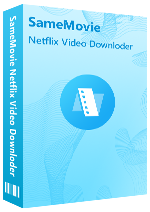
SameMovie Netflix Video Downloader is a safe and reliable tool that allows you to download Netflix movies and TV shows on laptops in full HD. The Netflix downloads are saved as MP4 or MKV files, so you can transfer them to any device. This means you can enjoy Netflix content even on older Fire TV models that no longer support the official app.
What's more, SameMovie supports batch download. So, you can download several different Netflix movies together or the entire Netflix seasons. With its hardware acceleration, the downloads will be finished very fast!
 You May Also Like: The 10 Best MP4 Movie Download Sites
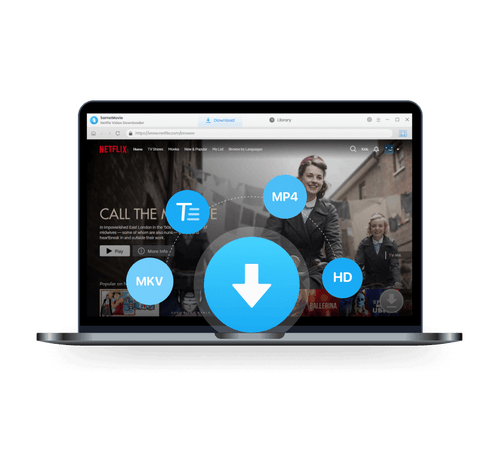
SameMovie Netflix Video Downloader:
- Download Netflix movies, TV shows, documentaries, and more
- Download Netflix videos with HD (1080p and 720p) quality kept
- Support downloading subtitles and audio tracks
- Support fast multi-stream and multi-video downloading
How to Download Netflix Videos Using SameMovie?
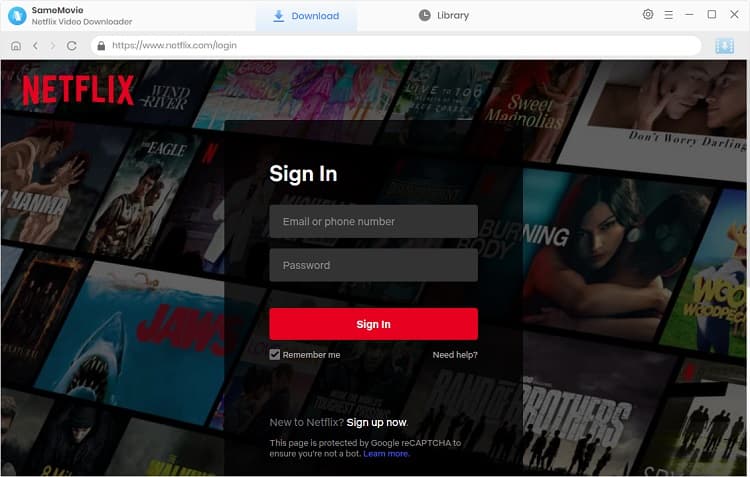
STEP 1 Install SameMovie and Log in to Netflix
Download and install SameMovie Netflix Video Downloader from the official website. Once done, run it and log in to your Netflix account.
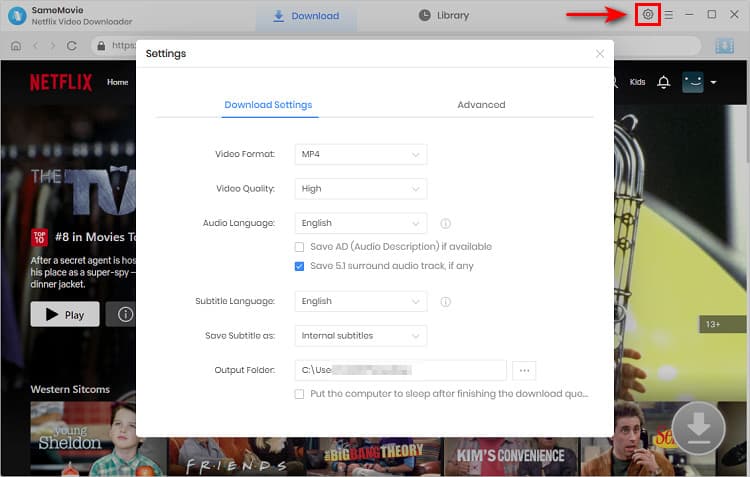
STEP 2 Customize Download Settings
Click the gear icon at the top right to set your video quality, audio and subtitle languages, and the output path.
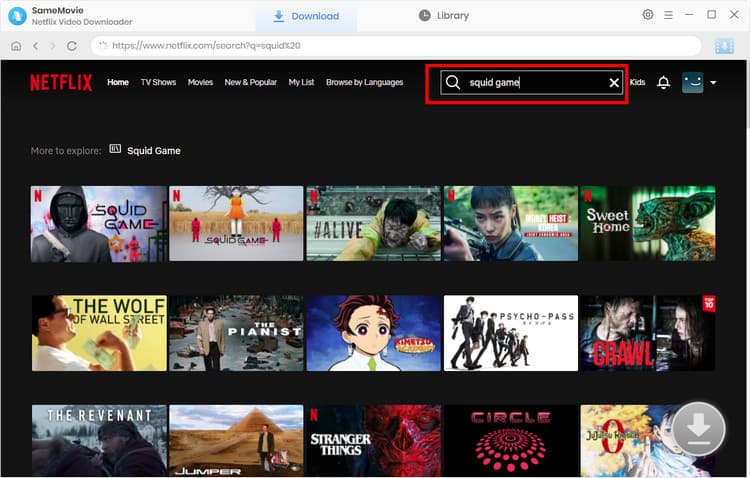
STEP 3 Find the Netflix Movies
You can search for your favorite Netflix movies within the built-in browser. Or, just paste the video link directly into the search bar. Select the video you want to download. Once the program detects the video, the Download button in the bottom-right corner will light up. Click it.
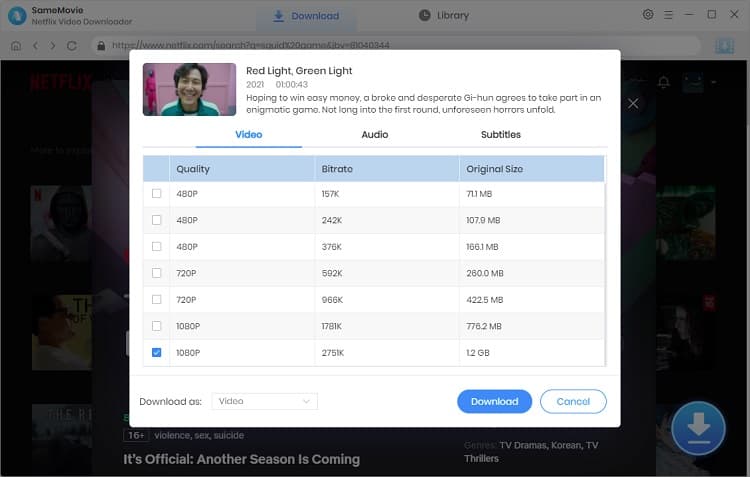
STEP 4 Advanced Settings And Download Netflix
Finish the advanced settings in the new pop-up windows, select the episodes if you are downloading the Netflix series, then click "Download" again.
STEP 5 Find Your Downloaded Netflix Files
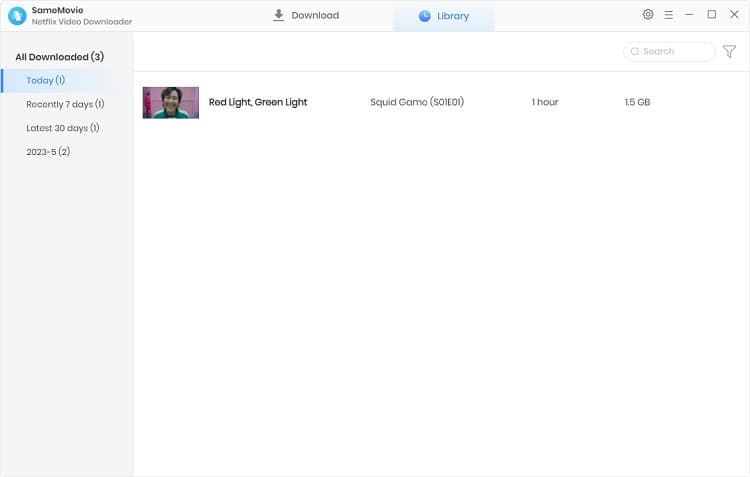
After the downloading process is finished, go to the "Library" tab in the top bar, and you will find all your downloaded Netflix movies are saved to your laptop.
STEP 6 Watch Netflix on Fire TV
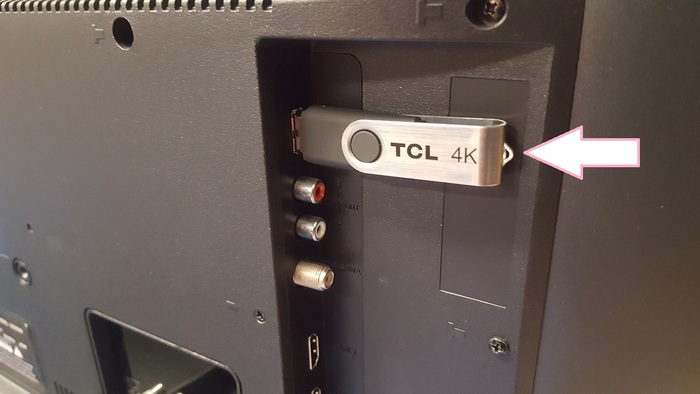
Once your download is complete, you can transfer the Netflix movie or series from your computer to a USB device. Plug the USB drive into the TV, then you can enjoy Netflix on your Fire TV, even the older one that no longer supports the official app.
Part 4: FAQs about Netflix Fire TV Support Ending
Can I still use Netflix on Fire TV via a web browser?
Unfortunately, no. Although Fire TV has the default browser - Amazon Silk, streaming Netflix on Silk often causes issues like black screens or lag, or the message "Netflix Is No Longer Available on This Device".
The better way to watch Netflix on an older Fire TV is to use SameMovie Netflix Video Downloader and download Netflix movies as MP4/MKV files.
What TVs Does Netflix Support?
In 2026, many smart TVs supports Netflix official app, such as Fire TV, Apple TV, LG TV, Roku TV and more. However, if you want to watch Neftlix on other devices, like Windows, Mac, Xbox, PS4, or more, you'd better use a professional tool like SameMovie Netflix Video Downloader.
You may also need 👉: How to Log Out of Netflix on TV: 2026 Ultimate Guide
Is it possible to stop updating Netflix on older Fire TV to keep it working?
No. It's impossible to prevent Netflix from updating because it always automatically finishes updating in the app store. Over time, your Fire TV may no longer be compatible with Netflix updates. You'll either need to keep updating your Fire TV or use SameMovie to resolve all device compatibility issues.
Final Words
Netflix continuously updates its platform to ensure a smooth streaming experience. However, some older devices, such as Fire TV models from 2014–2016, can't keep up with these updates and are eventually no longer supported by Netflix.
The easiest solution is to use SameMovie Netflix Video Downloader. Download Netflix movies and TV shows as MP4 or MKV files, and watch them freely without any device limitations.
Tips: How to Improve the Resolution of Old Video to 4K?
Powered by algorithms and an AI engine, AVCLabs Video Enhancer AI can not only deblur each frame of a video, but also upscale the low-resolution videos to high-resolution (720p, 1080p, 4K, and up to 8K) with true details and motion consistency kept.
Learn More
Claire Green, a content writer specializing in blogs. With a passion for streaming video, Claire explores the latest trends, reviews popular platforms, and provides insightful tips for optimizing your streaming experience.
What You'll Need
Recommend