

Can You Download Movies on Apple TV? Here's How (2026)

Nina Prescott November 12, 2026 Category: Topics
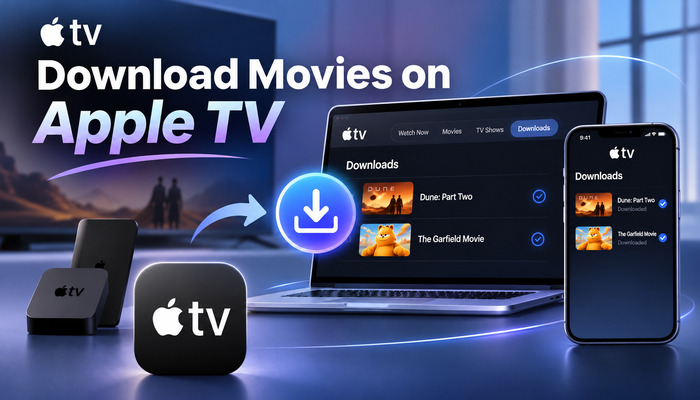
Can you download movies on Apple TV for offline viewing?
Yes! But it depends on the device you're using. iPhone, iPad, Mac, Windows PC, and Android devices support downloading movies through the Apple TV app, while Apple TV 4K and Apple TV HD don't support direct downloads.
This guide will show you step by step how to download movies through the Apple TV app and how to save Apple TV movies as MP4 or MKV files so you can watch them anywhere.
You May Also Like  : How to Get Apple TV+ Free Trial [10 Ways]
Reading Guide
Part 1: Can You Download Movies on Apple TV for Offline Viewing?
Apple TV supports downloading movies and TV shows on certain devices for offline viewing. However, not all devices that support the Apple TV app offer a download feature.
For example, iPhones, iPads, Macs, Windows PCs, and Android devices allow users to download eligible content through the Apple TV app. In contrast, Apple TV 4K, Apple TV HD, and most smart TVs are primarily designed for streaming and don't support direct downloads.
| Device | Download Movies for Offline Viewing |
|---|---|
| iPhone / iPad | ✅ |
| Mac | ✅ |
| Windows PC | ✅ |
| Android | ✅ |
| Apple TV 4K / HD | ❌ |
| Smart TVs | ❌ |
| Apple TV Website | ❌ |
Apple TV Download Limitations
Although the Apple TV app supports downloading movies and shows, its official download feature still has some limitations:
- ❌ Downloaded files can't be freely transferred to other devices or played on other media players.
- ❌Some downloaded content expires after a certain period. For example, most Apple TV Channels downloads expire after 30 days, while some content must be finished within 48 hours after playback begins.
- ❌ The number of downloadable titles and supported devices is limited.
Part 2: How to Download Apple TV Movies as MP4 Files with SameMovie
If you want to get around the limitations of Apple TV and download movies as MP4 or MKV files so you can transfer them to other devices and watch them anywhere, you can try SameMovie Video One.
SameMovie Video One is a professional video downloader that supports 1,000+ streaming sites, including Apple TV. It allows users to download Apple TV movies and shows on Mac or Windows PCs and save them as MP4/MKV files for local storage.
Compared to official Apple TV downloads, SameMovie also provides many advanced features, such as batch downloading, so you can download an entire season or multiple movies at the same time.

Key Features of SameMovie Video One:
- Download movies, TV shows and sports on Apple TV on laptops
- Download videos from 1000+ websites
- Download videos in HD quality, including 720p, 1080p, and 8K
- Download multiple videos simultaneously at up to 10X speed
- Preserve multilingual audio tracks and subtitles
- 8X speed recording for any sites: YouTube, Amazon, TikTok & more
Check out Comprehensive Review of SameMovie Video One >>
Free Trial Free TrialHow to Download Apple TV Movies as MP4 with SameMovie
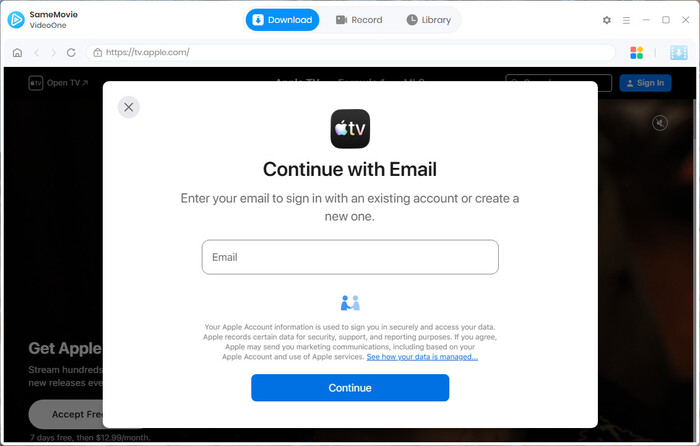
STEP 1 Install SameMovie Video One
Download and install SameMovie Video One on your computer. Launch the program, and you will see a list of supported websites. Click Apple TV and log in to your account.
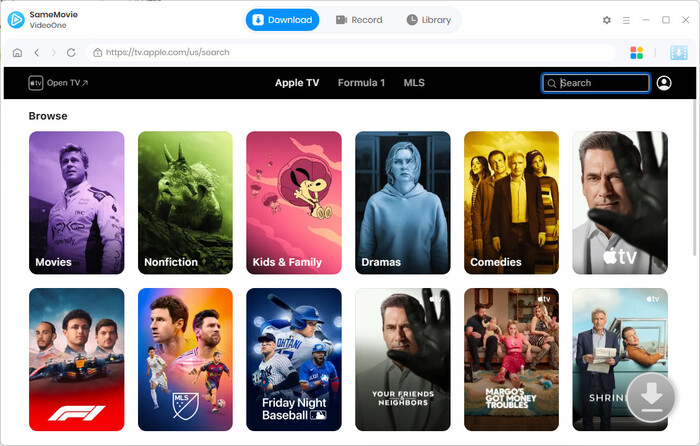
STEP 2 Search for Movies
Browse the Apple TV catalog using the built-in browser to find the movie you want to download, or simply paste the video link into the search bar. Once the video has loaded, click the Detect Video button in the bottom-right corner.
STEP 3 Choose Your Download Preferences
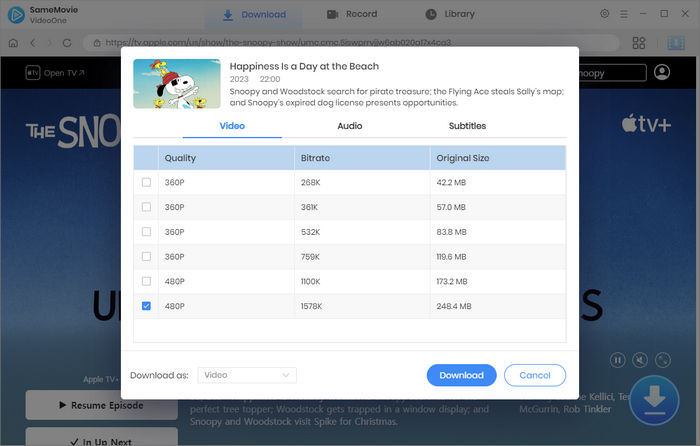
Check the episode you want to download, or select all episodes. Then customize your preferred video quality, audio tracks, and subtitle options. When you're ready, click the Download button.
STEP 4 Locate Your Downloaded Apple TV Movies
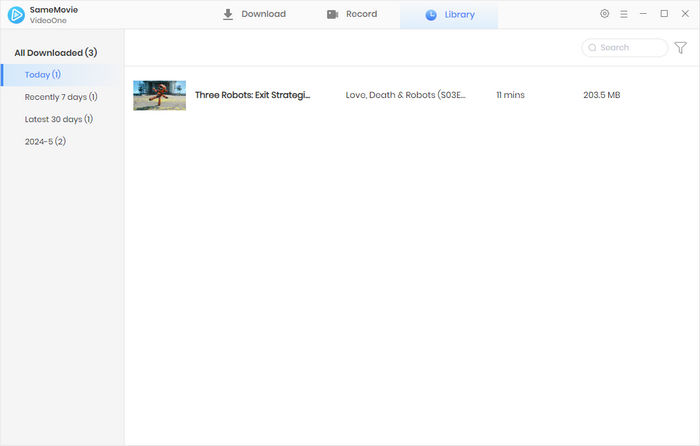
Once the download is complete, go to the Library tab, where you can see your downloaded movies listed by date. Click the file icon on the right to locate the folder where your videos are saved on your computer.
Part 3: How to Download Movies on Apple TV App on Different Devices
The process of downloading movies and shows through the Apple TV app is almost the same across devices, but there are a few differences in the download options and steps. Next, we'll show you step by step how to download movies using the Apple TV app on Android, iPhone, MacBook, and Windows.
Download Movies on Apple TV on iPhone
- Open the Apple TV app on your iPhone, find the movie you want to download, and tap the Download button on the details page.
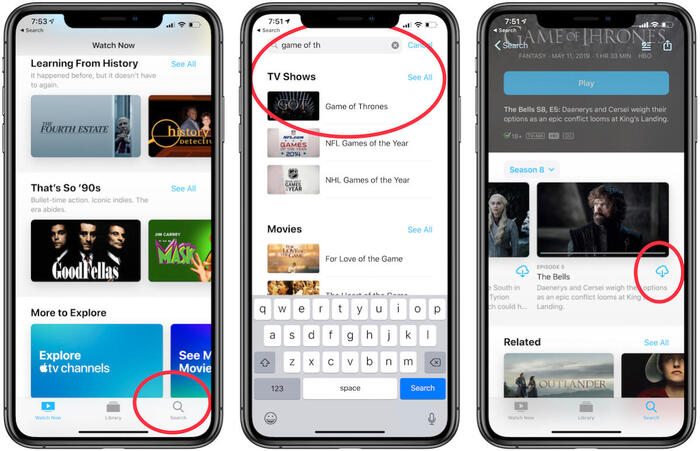
- After downloading, go to Library → Downloaded to find your downloaded movies.
- To automatically download upcoming episodes, open Settings, scroll down and tap Apps → TV, then enable Automatic Downloads.
Download Movies on Apple TV on Android
- Install Apple TV from Google Play. If your device doesn't support Google Play, you can download the Apple TV APK file from a well-known third-party platform such as APKMirror, APKPure, or Uptodown.
Note: Be careful when downloading APK files from third-party websites, as some files may be modified or contain security risks.
- Open the Apple TV app, find the movie, and click Download.
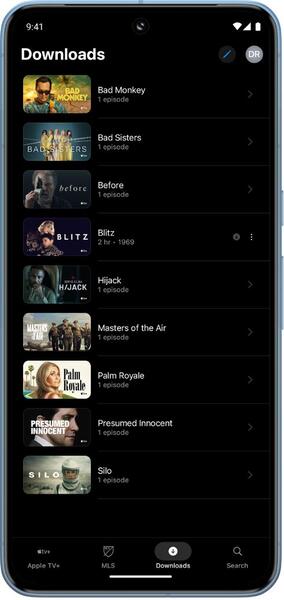
- Tap the Downloads tab at the bottom of the screen to find your downloaded movies and TV episodes.
Download Movies on Apple TV on MacBook
- Launch the Apple TV app on your Mac. Find the movie or TV show you want to download. Click the Download button, or click the More icon and select Download.
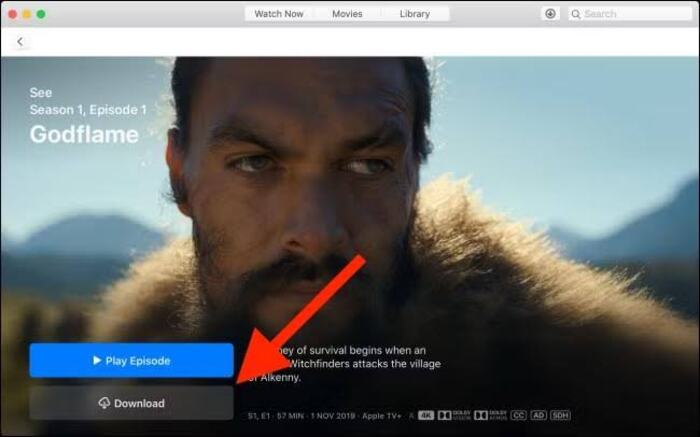
- Find your downloaded content in Library → Downloaded.
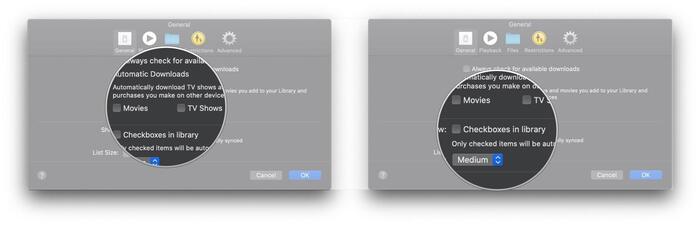
- In the Apple TV app, go to TV → Settings → General. Under Automatic Downloads, select Movies, TV Shows, or both.
Download Movies on Apple TV on Windows PC
- Install the Apple TV app from the Microsoft Store.
- Click Download directly when downloading movies. When downloading TV shows, find the specific episode and click More → Download.
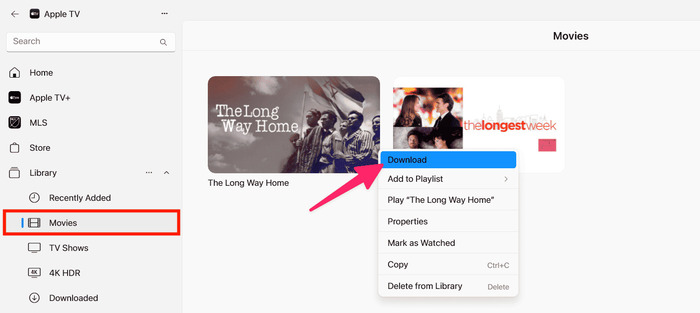
- Once the download is complete, go to Library → Downloaded to find your downloaded movies and shows.
Part 4: FAQs About Downloading Movies on Apple TV
Can You Download Movies on Apple TV 4K?
No. Apple TV 4K is a streaming device (set-top box) developed by Apple. You can stream Apple TV movies and shows on it, but you can't download them for offline viewing.
Can You Download Movies on Apple TV for Free?
Yes, but it depends on what content you want to download. Some content on the Apple TV app can be watched or downloaded for free. However, most movies and shows require a purchase or an active subscription.
How Long Do Downloaded Apple TV Movies Last?
Most downloaded movies and shows from Apple TV Channels expire after 30 days. Some content may expire within 48 hours after playback begins.
Can I Download Apple TV Movies to an External Hard Drive?
The Apple TV app doesn't offer an option to download movies directly to an external hard drive. If you want to save Apple TV movies or shows as MP4 or MKV files and choose an external drive as the output path, you can consider tools like SameMovie Video One, which allows you to customize the output path.
Final Words
Downloading movies and shows through the Apple TV app comes with several limitations, such as expiration dates, download limits, and subscription requirements.
If you want more flexibility and want to save Apple TV movies as MP4 or MKV files, SameMovie Video One is another option worth considering. Once downloaded, you can watch your favorite movies and shows anytime, anywhere, without worrying about your subscription expiring.
Nina Prescott is a senior writer renowned for her expertise in resolving streaming platform download errors. Her concise writing style and practical methods have earned her a stellar reputation among readers and peers alike. Whether you're facing a technical glitch or seeking streaming tips, Nina's guidance ensures a smooth and enjoyable reading experience.


What You'll Need
Recommend